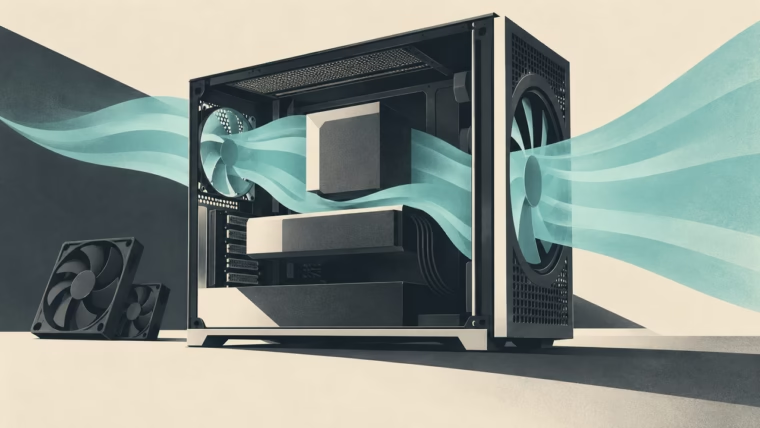
Conceptual illustration: Mais FPS, created with AI.
You open a launcher, the fans roar, and a moment later the room goes quiet again. Then it happens when a browser tab loads. The game has not even started. A PC that reacts noisily to every brief temperature change may need a better fan curve before it needs new cooling hardware.
The aim is a predictable machine: restrained during light use, adequately cooled during a long session, and ready to increase airflow when genuinely needed. That is a more useful target than the lowest possible idle temperature or a screenshot of somebody else’s settings.
Is 30 dBA quiet? Tell us where you measured
A PC at 30 dBA can be noticeable in a quiet room. That is no universal annoyance threshold. Distance, background noise and the character of the sound matter; dBA indicates a hearing-weighted measurement. GN documents one-metre measurements with a roughly 14 dBA chamber floor, while HWCooling’s technical interview with Noctua explains why angle and reflections also change results. A desk-side reading cannot be compared blindly with that laboratory number. Listen from your chair: a steady whoosh and repeated surges can feel quite different.
Find out what is actually making the noise
Start with the current profile and observe it. Note CPU and GPU temperatures, reported fan speeds and the task running when the sound changes. Check whether the noise comes from case fans, the CPU cooler, graphics card or AIO pump. A curve for the wrong device will not fix it.
Inspect dust filters and visible airflow restrictions with the PC switched off and power disconnected. Check that cables cannot catch a blade and that a fan is not loose. Mechanical rattles deserve a mechanical fix. Do not reach into running fans to identify them.
Record a baseline during light desktop use and a familiar game. If the system is already overheating, losing cooling-device operation or shutting down, address that fault before reducing speeds. A pleasant acoustic profile starts with working hardware.
Use the controller that actually owns the fans
Begin with your motherboard’s firmware controls or the supported software for your cooler or controller. Identify which connector controls each group. Proprietary hubs and splitters can change how many fans respond together and which speed reading is reported.
The ASUS AMD 800-series BIOS manual documents PWM/DC selection, temperature sources and step-up/step-down behaviour. The available options vary by board. Match the control mode to your hardware rather than assuming every four-pin-looking connection works identically.
If a supported calibration feature is available, follow its instructions. ASUS’s Fan Xpert guide describes tuning before customizing individual fans. Afterwards, verify that each fan starts reliably at its chosen minimum, including after a cold boot. Noctua notes that insufficient starting voltage can prevent a fan from spinning. A low percentage is only useful when the fan behaves as intended.
Choose a temperature that matches the job
CPU-cooler fans should respond to the processor’s cooling needs. Case airflow also has to serve the graphics card, which can become busy while the CPU remains relatively comfortable. If your supported controller offers GPU-aware or multiple-source control, that may make more sense for case fans than following CPU temperature alone.
For compatible liquid coolers, coolant temperature can provide a useful input for radiator fans. Corsair’s iCUE guide explicitly lets users choose the temperature source, then assign the curve to the intended devices. Check what your own model exposes. A coolant curve needs coolant-appropriate targets; copying CPU temperature points would be a serious mistake.
Keep the pump on its manufacturer-supported settings while you tune fans. A radiator-fan profile is not automatically a suitable pump profile.
Smooth the response without blinding the system
A fan curve maps temperature to requested speed. A sensible starting shape keeps light-use airflow steady, increases it across sustained working temperatures and preserves a strong response near the limits appropriate to that hardware. Use the manufacturer’s safe defaults as your starting point, not a universal percentage recipe.
Hysteresis creates a small buffer before the controller changes its response; timing controls can delay or smooth those changes. Exact implementation varies. They can stop a brief spike from triggering repeated surges, but excessive delay can also postpone necessary cooling.
Noctua’s 2026 example curves for the Antec Flux Pro Noctua Edition use smoothing and CPU/GPU-aware control. The company explicitly says its profiles were validated on a particular setup. That makes them useful examples to learn from, rather than settings guaranteed to suit another PC.
Test the boring moments as well as the big battle
Save the original profile, adjust one setting and repeat your baseline. Listen while opening apps, starting a game and returning to the desktop. Then run a representative sustained workload long enough for temperatures to settle, watching both CPU and GPU. Preserve thermal protections and meaningful fan-failure warnings.
Check behaviour after reboot and after the control application closes. Know what fallback profile the device uses if software or a sensor becomes unavailable. If temperatures or behaviour become concerning, restore the previous settings and investigate.
A good curve should survive ordinary life: a warmer room, a different game and a long evening at the desk. Once the system remains comfortably within its intended operating conditions and stops drawing attention to every small task, save the profile. You can finally let the game’s audio do the talking.