Gemini on Mac can now do more than tell you where to click. In its November 19 announcement, Google says Computer Use can click, type, navigate menus and fill in forms across Mac apps and the web. It works on a separate virtual screen in the background, leaving your main cursor free.
A separate screen is not a separate account
You can watch the live preview in chat and pause the task. Google’s help page says the first attempt to use an app asks you to deny access, allow it or always allow it. Sensitive actions can require separate confirmation. Authorized apps can already be signed into your accounts, so I’d start with temporary access and copies, and keep sending and publishing out of the task.
Where it could save creative time
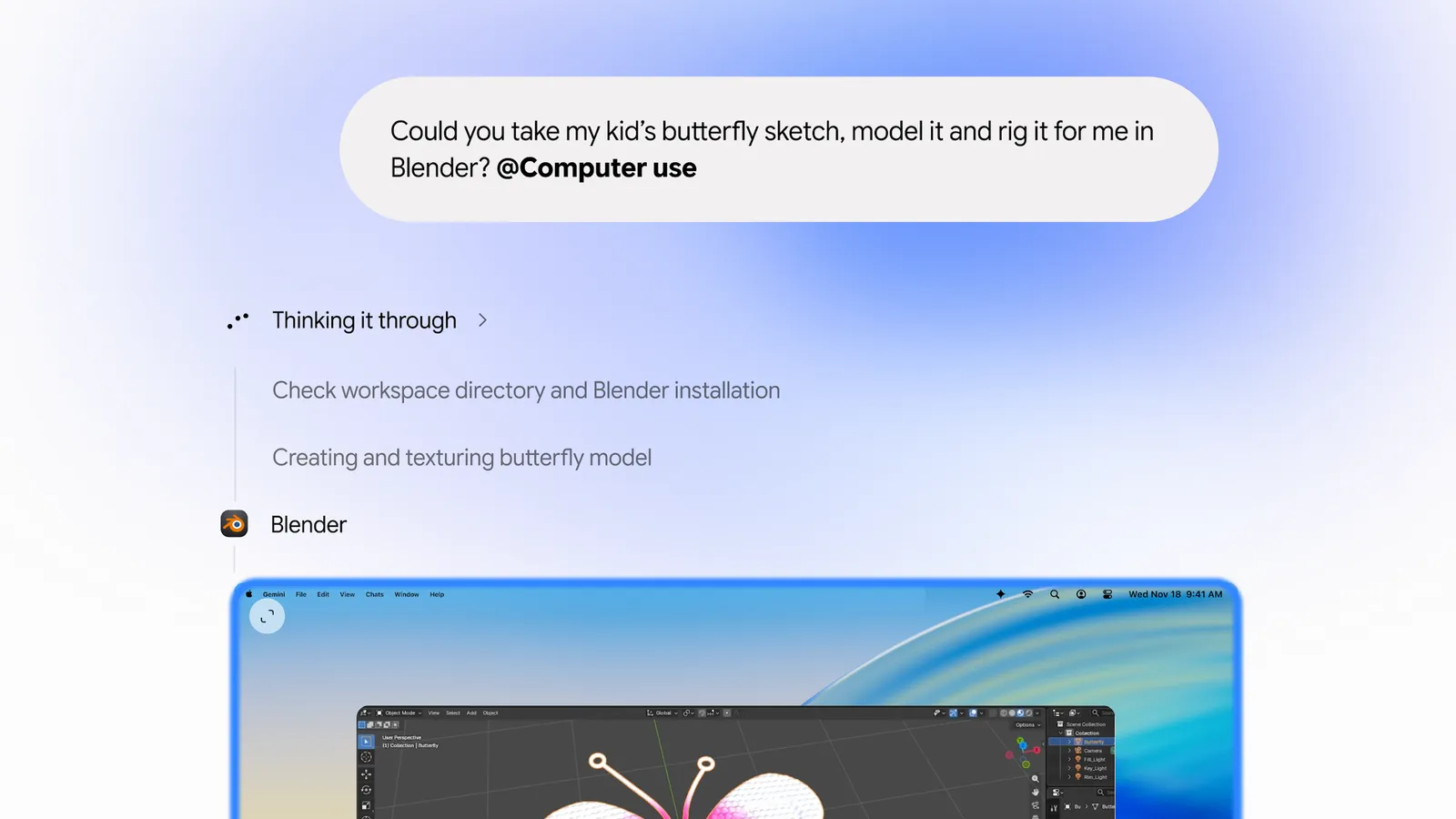
Google’s demo turns a butterfly sketch into a model and prepares it for animation in Blender. For a creative team, a smaller first test would be to apply one color adjustment to five copies, export to a new folder and check the results against an approved reference. This is a suggested workflow, not a Mais FPS test. Watch the official demo in Google’s announcement.

Who can use it now
The rollout began in English in the United States. It requires an Apple Silicon Mac running macOS Sequoia 15.0 or later, a personal Google account for someone 18 or older, and Google AI Plus, Pro or Ultra. Work and school accounts are excluded for now. Google has not announced Brazilian availability; installing the app does not unlock Computer Use.